Forecast Produce Bill Background Calculations
ProduceLinc’s overnight forecast bill calculations run using a background processing approach that distributes work across parallel Business Central sessions. Rather than running all calculations sequentially in a single job, the system queues each forecast bill individually and processes them in controlled batches — making the nightly run resilient to timeouts and scalable to large volumes.
Why This Approach Exists
Businesses with large volumes of forecast bills, forecast bill lines, and comprehensive standard rate configurations can experience timeout failures during a nightly forecast bill calculation job queue. These timeouts result in incomplete figures the following morning, requiring manual intervention.
The background processing approach eliminates timeouts by distributing work across parallel background sessions rather than running everything in a single sequential job.
Running Alongside the Original Method
The parallel processing method (Calculate Forecast Bills 2.0) can run alongside the original sequential method (Calculate Forecast Bills), giving you time to validate results before fully switching over. This allows you to:
- Trial the parallel method in a sandbox environment — run it alongside the original job, with no risk to your live environment.
- Verify results before committing to a full cutover in production.
Once you are comfortable with the results in your sandbox, you can switch your production environment over to the parallel method at your own pace. The original method remains available in the meantime.
How This Works
Two new job queues
The background calculation method uses two job queue entries running on a schedule:
-
Calculate Forecast Bills 2.0 — This is the entry point. When this job runs at its scheduled time (e.g. midnight), it queues up all forecast bills for background processing. Think of it as the job that creates the to-do list for the night’s run.
-
Process Queue Batch Dispatch — This is the engine that works through that to-do list. It runs every few minutes on a short recurring interval, picks up the next batch of work from the queue, and hands it to Business Central’s background session handler to process. It also monitors for errors and retries any failed items automatically.
Job Queue Entries to set up
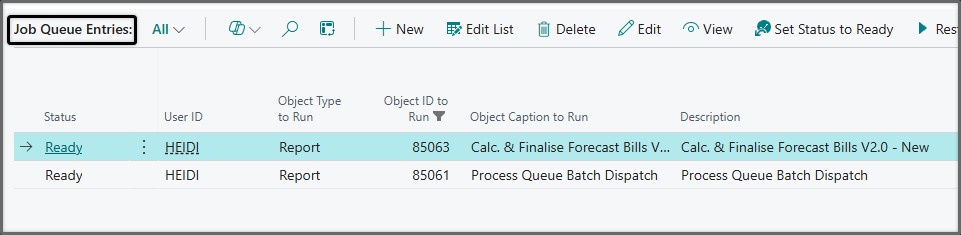
What happens when Calculate Forecast Bills 2.0 runs
Before creating new work, the report first cleans up: it removes any leftover entries from the previous night’s run — but only those that are no longer actively processing. Anything currently in progress is left alone.
It then adds records to the process queue in two phases:
- First: the pallet charge allocations — in most cases these will already be done, since ProduceLinc now automatically forecast allocates pallet charge assignments the moment a purchase invoice or credit memo with charge assignments is posted. However, the new forecast job will catch any that slipped through — for example, if the automatic allocation failed at the time the purchase document was posted.
- Then: the forecast bills themselves — one entry per bill.
How processing works
A typical nightly run may involve hundreds — sometimes thousands — of forecast bills. Business Central can only hold up to 10 background sessions running at once, with up to a further 100 sessions waiting in its own internal queue. That is a total of 110 bills at any given moment — far fewer than the full night’s workload.
This is the core reason ProduceLinc introduces its own process queue layer: it acts as the holding area for the entire night’s work, feeding bills into BC’s limited queue in controlled batches.
The Process Queue Batch Dispatch job runs every few minutes and does the feeding: it fills BC’s session queue up to its 100-session limit, drawing from the ProduceLinc process queue. As each of BC’s 10 active sessions finishes calculating a bill, BC automatically starts the next waiting session from its queue. The dispatcher’s next run then tops BC’s queue back up with more records from the ProduceLinc queue — and retries anything that failed (for example, due to a temporary database lock conflict). This cycle continues throughout the night until every bill in the ProduceLinc queue has been processed.
Visibility while processing runs
While the nightly run is under way:
- The Process Queue List page shows the status of every entry — whether it is waiting, in progress, completed, or in error.
- On each Forecast Bill itself, a status indicator shows whether it is “Waiting in Queue” or “In Progress”.
- When a bill finishes calculating, its entry in the process queue is marked as Completed.
Example of progress visiblity on forecast produce bills and process queue pages 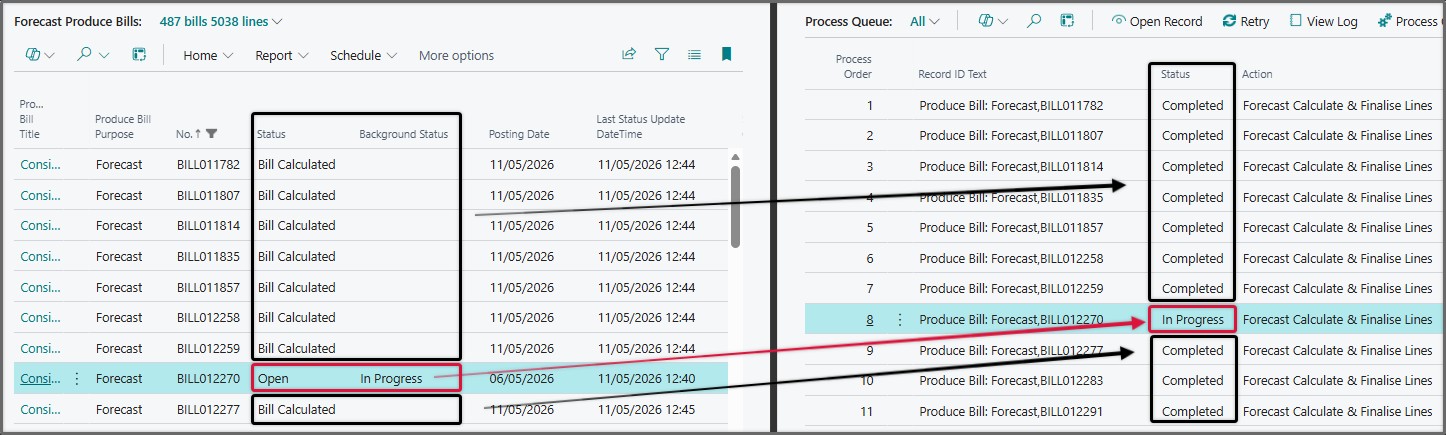
Setup Guide
Step 1: Schedule the Process Queue Batch Dispatch Job (Required)
What you’re doing: Scheduling the engine that works through the process queue.
Why it’s required: Without this running on a schedule, forecast bills added to the process queue will sit there indefinitely — nothing will pick them up and process them. This job is also what handles automatic retries when something fails.
- Search for Job Queue Entries in Tell Me.
- Add a new entry for Report 85061 — Process Queue Batch Dispatch.
- Set it to recur at least every 5 minutes.
- Set the status to Ready.
Note
The shorter this interval, the sooner the system picks up new work and recovers from errors. Every 5 minutes is the recommended minimum.
Step 2: Schedule the Calculate Forecast Bills 2.0 Job (Required)
What you’re doing: Scheduling the new forecast report that populates the process queue each night.
Why it’s required: This is the job that creates the nightly processing list. Without it, the process queue is never populated and nothing calculates.
- In Job Queue Entries, add a new entry for Report 85063 — Calculate Forecast Bills 2.0.
- Schedule it to run at the same time the original Calculate Forecast Bills job runs (e.g. midnight).
- Set the status to Ready.
Note
We recommend validating this in a sandbox environment before enabling it in production. Running both Calculate Forecast Bills 2.0 and the original Calculate Forecast Bills job in the same environment is not recommended: it creates unnecessary processing overhead, risks table lock conflicts if both jobs attempt to calculate the same bill at the same time, and makes it impossible to know whether results the next morning came from the original method or the parallel one. If you are ready to go straight to production, make sure you first set the original Calculate Forecast Bills job to On Hold or remove it from Job Queue Entries before enabling this one.
Step 3: Configure Process Queue Setup (Optional)
The Process Queue Setup page is where you control how the process queue system behaves. The system comes with sensible defaults and will work without any changes — but there are two settings worth knowing about.
Search for Process Queue Setup in Tell Me.
Enable Logging
Logging is off by default. Every time a background session starts, completes, fails, or retries, the system can record a detailed entry in the Process Dispatch Log — including what happened, when, what the bill status was at the time, and the full error details if something went wrong.
We recommend keeping logging switched on during initial setup and while validating results. If any issues arise, the dispatch log is what will allow you to investigate and resolve them quickly.
Setting: Enable Logging = On
Max Auto Retries — leave at 0
When a background session fails for a temporary reason (such as a database lock conflict), the system automatically retries it. This setting controls the maximum number of automatic retries before the system stops trying and marks the entry as an error for you to review manually.
Setting it to 0 tells the system to use the built-in default of 20 retries, which is appropriate for most environments. Only change this if you have a specific reason to.
Setting: Max Auto Retries = 0 (system default of 20 applies)
Step 4: Set Up Quiet Hours Per Action (Recommended)
What you’re doing: Telling the system when automatic retries are and are not allowed to run.
Why this matters: When the system automatically retries a failed background session, it starts new background processing and does database work. During business hours — when your team is actively working on bills — this extra background activity can slow things down for active users. By setting quiet hours, you ensure that automatic retries only happen overnight, when no one is working and there is no performance impact on active users.
Note
This only affects automatic retries. A user can always manually retry a failed entry from the Process Queue List at any time, regardless of quiet hours.
On the Process Queue Setup page, scroll down to the Action Retry Settings section. Add one row per action you want to restrict:
| Action | Restrict Auto Retry | Quiet Hours From | Quiet Hours To |
|---|---|---|---|
| Forecast Allocate Actual Charges | On | 20:00 | 06:00 |
| Forecast Calculate & Finalise Lines | On | 20:00 | 06:00 |
- Restrict Auto Retry = On — automatic retries for this action only happen within the configured time window.
- 20:00 – 06:00 — retries are allowed from 8 PM through to 6 AM. The system handles this overnight range correctly (From later than To = spans midnight).
Adjust the times to suit your own business hours.
Example of Process Queue Setup 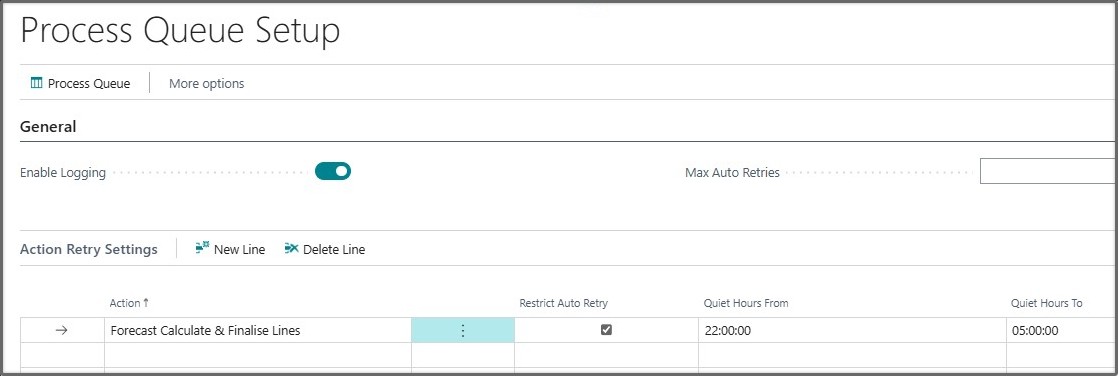
Step 5: Check the Process Queue the Next Morning
Since the job runs overnight, there is no need to actively monitor it while it runs. The following morning, check the Process Queue List to confirm that all bills processed successfully.
Search for Process Queue List in Tell Me, or access it via the Process Queue button on the Process Queue Setup page. Filter the list on Status = Error to identify any entries that did not complete. These will need further investigation — the View Log action will show you the full dispatch history for that entry, including any error details (provided logging was enabled in Step 3).
Step 6: Dispatch Log Maintenance
No manual maintenance is needed in normal operation. Each time Calculate Forecast Bills 2.0 runs, it automatically clears the previous night’s process queue entries — along with their dispatch log entries — before queuing up the new night’s work.
The Purge Old Entries action on the dispatch log page (removes entries older than 30 days) is available as a safety net for edge cases, but you should not need to use it routinely.