Bulk Posting of Produce Bills
Produce bills can be posted in bulk from the produce bills list pages. Rather than posting each bill one at a time, you select the bills you want and submit them all at once — the system then works through them steadily in the background using ProduceLinc’s process queue, tracking every bill from submission through to the posted purchase invoice or credit memo.
This article explains how bulk posting works, what needs to be set up, how to follow progress, and what to do when a bill fails to post.
Prerequisites
Bulk posting requires the following. If any are missing you will get a message when you attempt to post, and nothing will be queued.
- Linc Setup → Allow Bulk Bill Posting enabled.
- Purchases & Payables Setup → Post with Job Queue enabled.
- Purchases & Payables Setup → a Job Queue Category Code specified.
In addition, a job queue entry for Report 85061 – Process Queue Batch Dispatch must be scheduled and running every 5 minutes. Without it, selected bills are added to the queue but nothing is ever posted.
If the dispatcher is also used for overnight forecast bill calculations, it needs more than one job queue entry — typically three, because of the way Business Central handles schedules that span midnight. See Setting Up the Dispatcher for the recommended configuration.
How Bulk Posting Works
Bulk posting has two distinct parts, and it is important to understand the split — the button on the bills page is only half the story.
Step 1 — Selecting bills and submitting them
On any of the produce bills list pages, select the bills you want to post and choose Post Selected Produce Bills.
Only Released bills can be posted. The system checks every bill in your selection upfront and will tell you if any are not ready. Advance bills are additionally checked for posted cost bill lines and reversed advances.
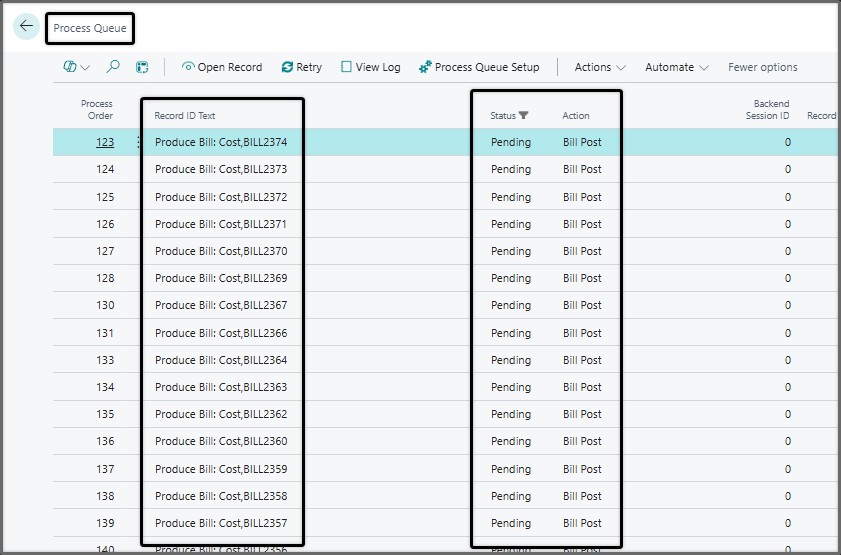
This action does one thing: it adds every selected bill to the ProduceLinc process queue as a pending item.
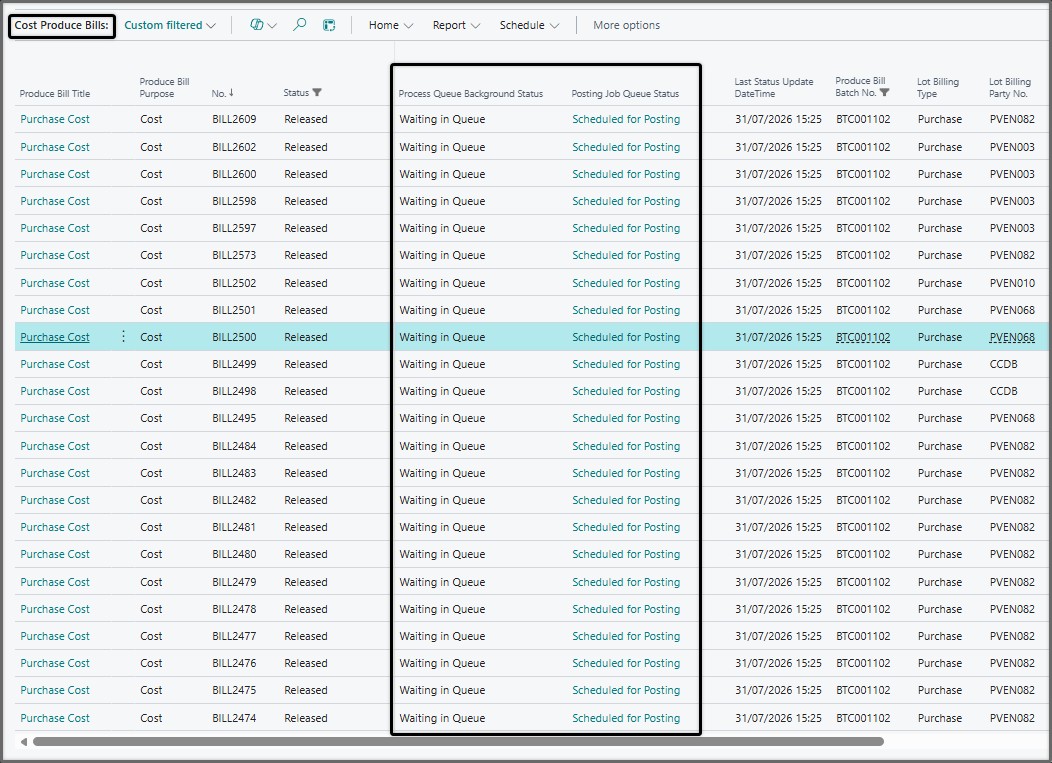
Nothing is posted at this point. No purchase document is created and nothing is handed to Business Central. The bills simply sit in the queue with a status of Waiting in Queue.
Queue housekeeping and duplicate protection
Before your bills are added, the system tidies up the queue: it clears out bill-posting entries that already completed on earlier runs, so the queue does not grow indefinitely. Anything currently in progress is left alone. Forecast entries are never touched by this clean-up — bill posting only ever clears its own bill-posting work, and the forecast run likewise only clears forecast entries.
Two safeguards apply as bills are added:
- A bill that is already waiting or already posting is skipped. No duplicate entry is created, so clicking Post Selected Produce Bills twice on the same selection does no harm.
- A bill that previously failed has its old failed entry cleared and is queued fresh. This means you can simply re-select and re-post the bills that did not make it, once you have resolved whatever caused the failure.
Step 2 — The dispatcher does the work
The queue does nothing on its own. A job queue entry running Report 85061 – Process Queue Batch Dispatch is what drives everything forward. Without it running on a schedule, bills sit in the queue indefinitely and nothing posts.
Each time the dispatcher runs, it:
- Works through the queue in order and hands the next batch of bills over for posting. This is what builds the purchase invoice or credit memo from the bill and hands it to Business Central to post.
- Fills Business Central’s session queue up to its limit and no further. As Business Central finishes bills and space opens up, the next dispatcher run tops the queue back up with the next bills in line.
- Checks on bills already in progress. If a bill has posted in the meantime, its process queue entry is marked Completed.
- Flags bills that failed, or where the background session ended without completing, as Error so they are visible rather than silently lost.
- Clears completed entries so the queue stays manageable.
The dispatcher usually needs to run more than once
Business Central can only hold 10 background sessions running at once, with up to a further 100 waiting in its own internal queue — around 110 bills at any given moment.
If you submitted 300 bills, the first dispatcher run sends through as many as Business Central will accept, and the rest wait. The next run sends the next batch, and so on until the queue is empty.
This is why the dispatcher must run regularly — every 5 minutes is the recommendation. If it runs only once, only the first batch will post.
Following Progress
Two status columns are available on the produce bills pages. They tell you two different things, and the distinction matters.
Process Queue Background Status
“Has ProduceLinc got to this bill yet?” This is ProduceLinc’s own queue, tracking the work of preparing the bill and creating the purchase document.
- Waiting in Queue — the bill is in the queue; the dispatcher has not started it yet.
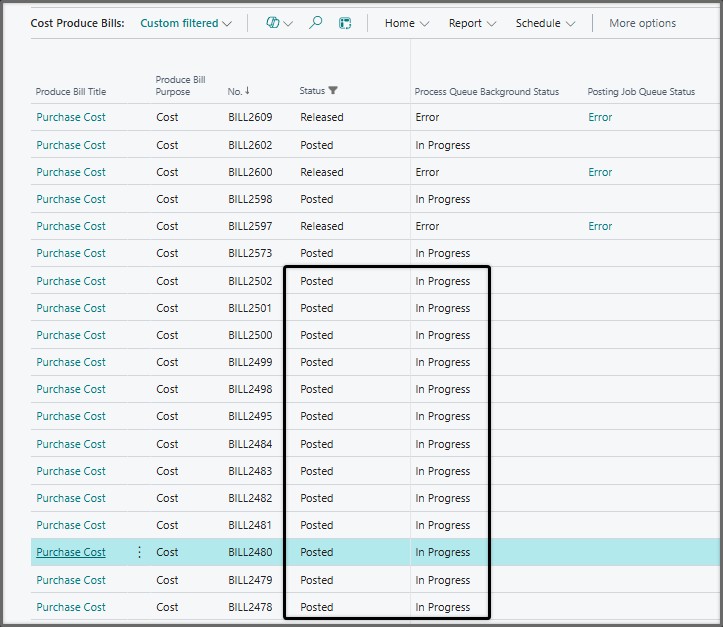
- In Progress — ProduceLinc is busy with this bill right now.
- Error — something went wrong before or during the handover to Business Central.
- Blank — there is no outstanding work for this bill.
Posting Job Queue Status
“Where is Business Central with the actual posting?” This is Business Central’s job queue — the one that does the real posting of the purchase invoice or credit memo. Once ProduceLinc has built the document and handed it over, this is where the action moves to.
- Scheduled for Posting — the document is queued with Business Central, waiting for its turn.
- Posting — Business Central is posting it right now.
- Error — Business Central could not post it. Click through to see why.
- Blank — nothing outstanding. If the bill shows Posted, it is finished.
In short: Process Queue Background Status is ProduceLinc getting the paperwork ready. Posting Job Queue Status is Business Central actually posting it. A bill moves from the first to the second, and when both are clear and the bill shows Posted, it is done.
The Process Queue page
The Process Queue page shows every entry with its status, the action being performed, and the record it relates to. From here you can open the underlying record, view the dispatch log for an entry, retry an entry, or check whether its background session is still active.
When a Bill Fails to Post
Failed bills are flagged on the bills page itself: the bill stays on Released, and the status columns show Error.
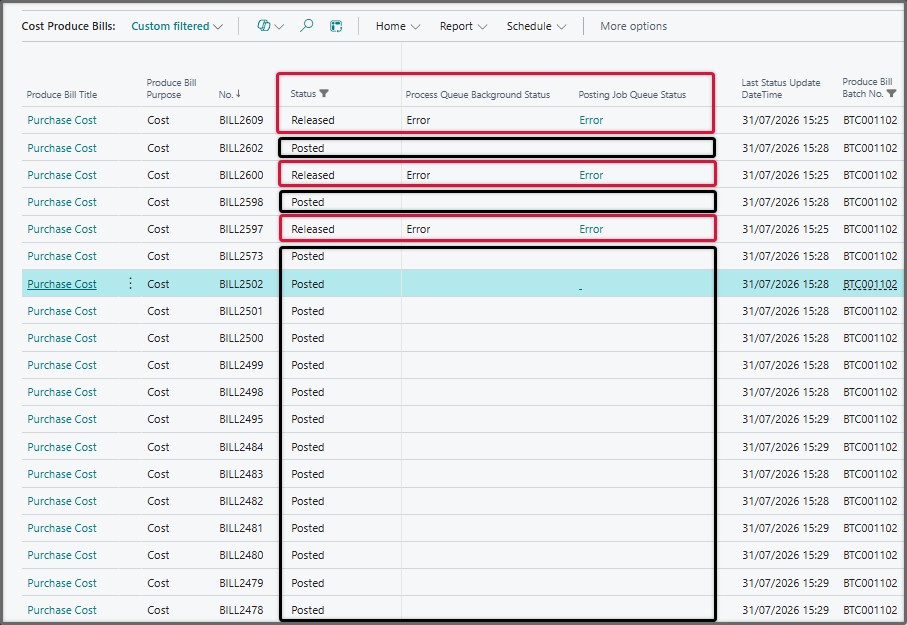
Posting Job Queue Status = Error
This means Business Central could not post the document.
- Click on the Error in the Posting Job Queue Status column. This takes you straight to the specific Business Central job queue entry for that bill’s document.
- Read the error. Most commonly it is something straightforward — a missing setup value, a blocked vendor, a closed posting period, or a dimension issue.
- Fix whatever needs fixing.
- Start that job queue entry again directly from there, and Business Central will retry the posting.
Process Queue Background Status = Error
This means the failure happened on the ProduceLinc side, before or during handover.
- Open the Process Queue page and locate the entry for the bill.
- Use View Log to see the full error detail. (Log detail is only recorded when Enable Logging is switched on in Process Queue Setup — see below.)
- Once the cause is resolved, use Retry on that entry, or simply re-select the bill on the bills page and post it again.
A note on retries
Failed posts are left for you to review rather than being pushed through again automatically. Posting creates real financial documents, so the system does not quietly re-run a bill that may already have got part of the way through. Deciding whether a bill should be retried is yours to make, once you have seen what went wrong.
Setting Up the Dispatcher
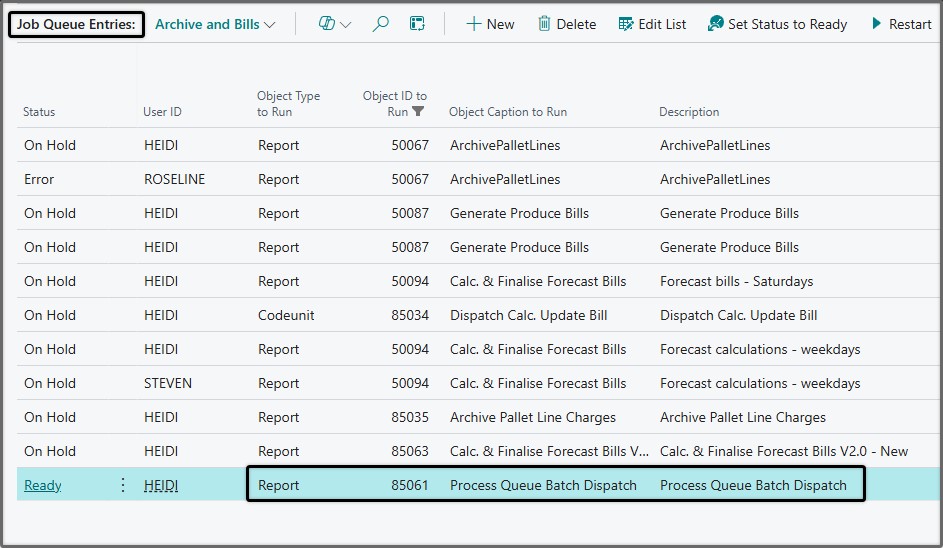
Bulk posting will not work without a job queue entry for Report 85061 – Process Queue Batch Dispatch, set to recur every 5 minutes.
If the dispatcher is already scheduled for overnight forecast bill calculations, it is the same report — but you will want a separate entry with different allowed hours, so that bulk posting has a window during business hours.
Recommended: separate entries for night and day
The dispatcher is typically used for two things: forecast bill calculations overnight, and bulk bill posting during business hours. Running it every 5 minutes, 24 hours a day, is rarely desirable.
A Business Central behaviour to be aware of: a job queue entry with a start time later than its end time — say 22:00 to 06:00 — does not carry on past midnight. Once the clock rolls over into the next day, the entry stops running and only picks up again that evening. An entry set up to span midnight will therefore do nothing for the second half of the night.
The way around this is to split the overnight window into two entries. Combined with a daytime window for posting, that gives three job queue entries for Report 85061:
- Evening entry — allowed from 22:00 to 23:59, recurring every 5 minutes. Handles the first part of the forecast run.
- After-midnight entry — allowed from 00:01 to 03:00, recurring every 5 minutes. Set its earliest start date to the following day so its first run lands inside the window rather than being skipped. This carries the forecast run through to completion.
- Business hours entry — allowed from, for example, 12:00 to 14:00, recurring every 5 minutes. This is the entry that drains bulk bill posting.
All three run the same report — they simply take turns. Between them the queue is worked through regularly without the dispatcher running around the clock.
If your forecast run finishes comfortably before midnight, the first two collapse into a single evening entry and only two are needed.
Choose the business-hours window to suit how your team works. If finance typically releases and posts bills in the late morning, a midday window works well. If posting happens throughout the day, widen the window — the important point is that there is a window, and that within it the job runs every few minutes.
Process Queue Setup
The Process Queue Setup page controls how the queue behaves. The defaults are sensible and bulk posting works without changing anything, but three settings are worth knowing about. Search for Process Queue Setup in Tell Me.
Enable Logging — off by default. When on, every start, completion, failure and retry is recorded in the Process Dispatch Log, including the full error detail and the bill status at the time. Switching it on is recommended while you are becoming familiar with bulk posting, and it is what allows a failure to be investigated after the fact.
Max Auto Retries — leave at 0, which applies the built-in default of 20. This governs temporary failures such as database lock conflicts, not posting errors.
Action Retry Settings (quiet hours) — these rows are configured per action. Quiet hours set for the forecast actions do not apply to bill posting. Because bulk posting runs during business hours, a row added for the Bill Post action should have its window set to the hours you actually post — for example 08:00 to 17:00 — so that nothing is retried unattended overnight. A narrower window is appropriate if you prefer to review every failure yourself before anything is re-attempted.
Practical Notes
- Only Released bills can be bulk posted. The system validates this upfront for the whole selection.
- You do not have to wait. Once the bills are submitted, the queue takes over. You can carry on with other work and check back later.
- Post in sensible batches. There is no hard limit, but working through a few hundred bills at a time makes it easier to keep track of what belongs to which run.
- Check back after a run. Filter the bills list on Status = Released to see anything that did not make it through, or open the Process Queue and filter on Status = Error.
- Bulk posting and forecast processing share the dispatcher but not the queue clean-up. Each only clears its own entries, so running one does not disturb work waiting for the other.
Related Articles
Forecast Produce Bill Background Calculations
Cost Produce Bills
Advance Produce Bills